
Streamline Work Item Insights with EA Genie’s Jira Integration
Overview
EA Genie connects with Jira to pull work items into the architecture model. With Jira integration, EA Genie can search Jira for work items and display insights based on them, helping align work items with the architecture model.
Prerequisites
For Jira configuration within EA Genie:
- The EA Genie account performing the configuration must have Admin privileges.
- The following Jira application details must be available:
1. Application URL
2. Email address associated with a Jira user account that has access to the required projects
3. Password or API Token for the Jira application
Configuration Steps
Navigation Path: Configuration → Tools & Integration → Jira
Configuration Inputs
| Field | Description |
| Application URL | Enter the Jira account URL. Example: https://evolvintel.atlassian.net/ |
| Enter the Jira account’s Username/email | |
| Password / Token | Enter the existing Password/API token of Jira to use in place of password/token. |
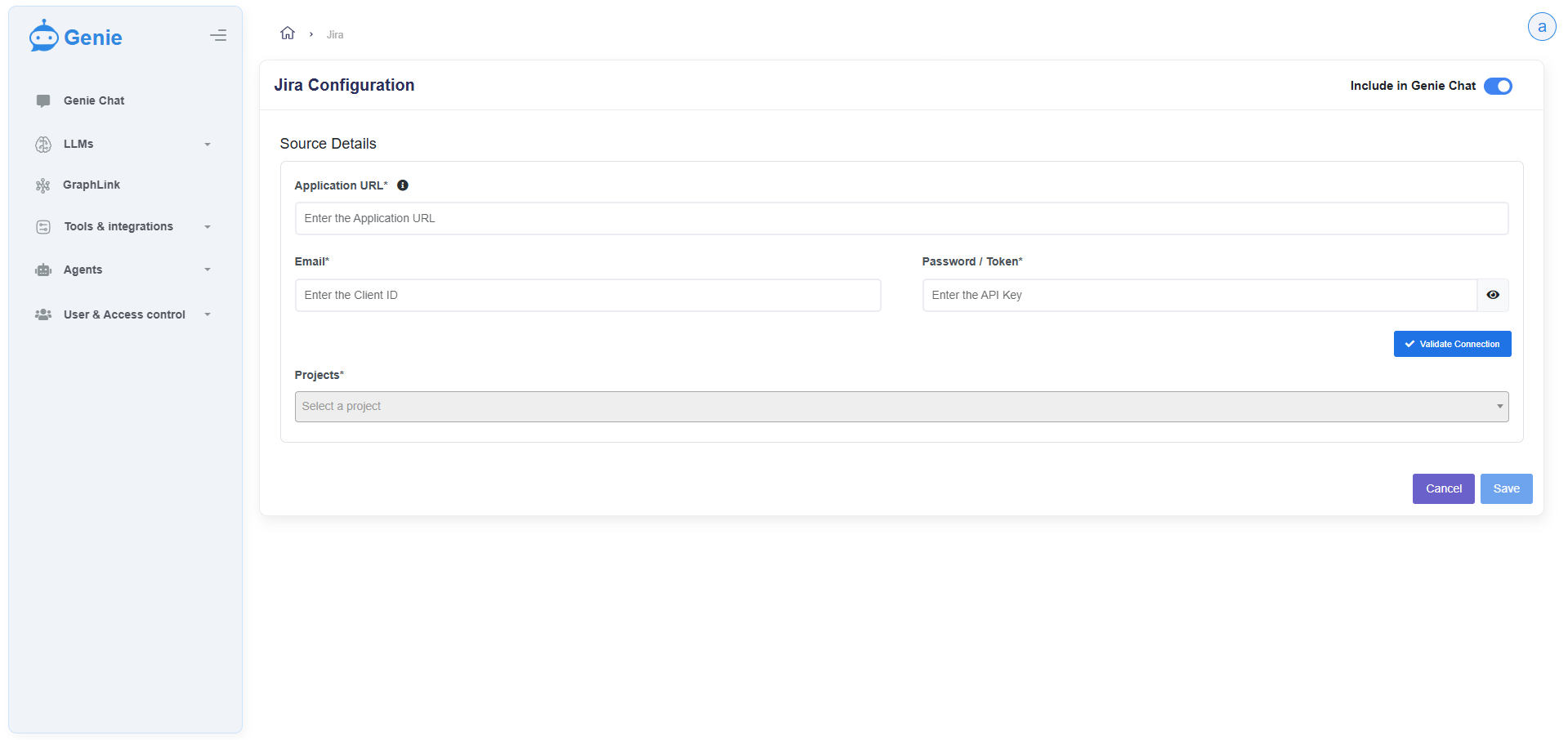
Initial Setup:
1. Enter the required details (Application URL, Email, password/API token).
2. Select Validate Connection to confirm successful authentication.
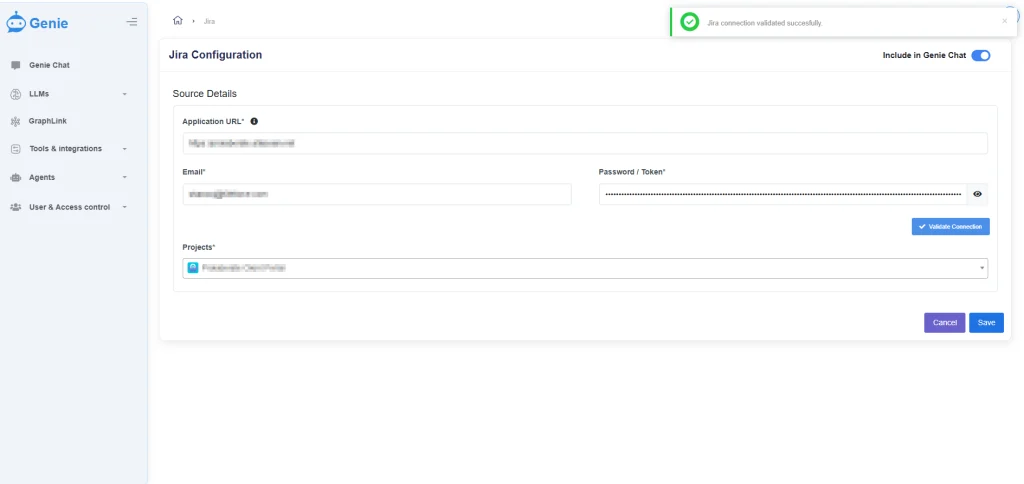
3. Once validated, available Jira projects appear in the Projects dropdown.
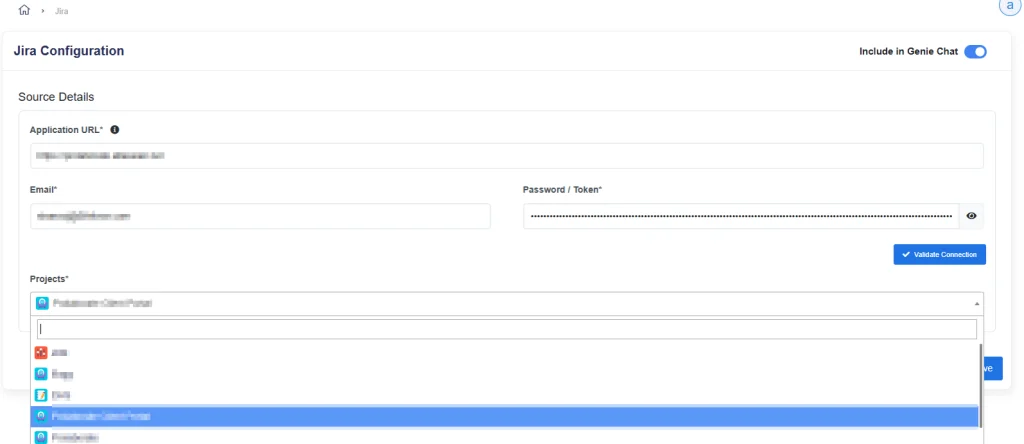
4. Select the desired project and choose Save.
Editing an Existing Configuration
When modifying an existing Jira configuration:
1. Adjust the required fields as necessary.
2. Select Validate Connection to re-authenticate the updated details.
3. Choose Save to apply the revised configuration.
Enabling Jira for Genie Chat
To activate Jira integration features within Genie Chat:
– Toggle Include in Genie Chat at the top-right corner of the Jira configuration page.
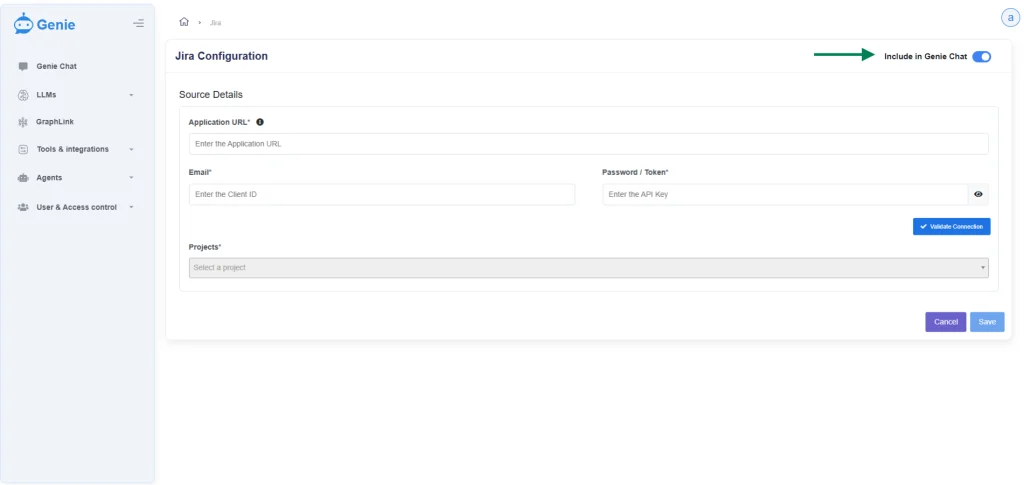
– When enabled, the Jira agent will appear as shown in the image below. Once selected, the chat will respond exclusively to Jira-related insights and actions.
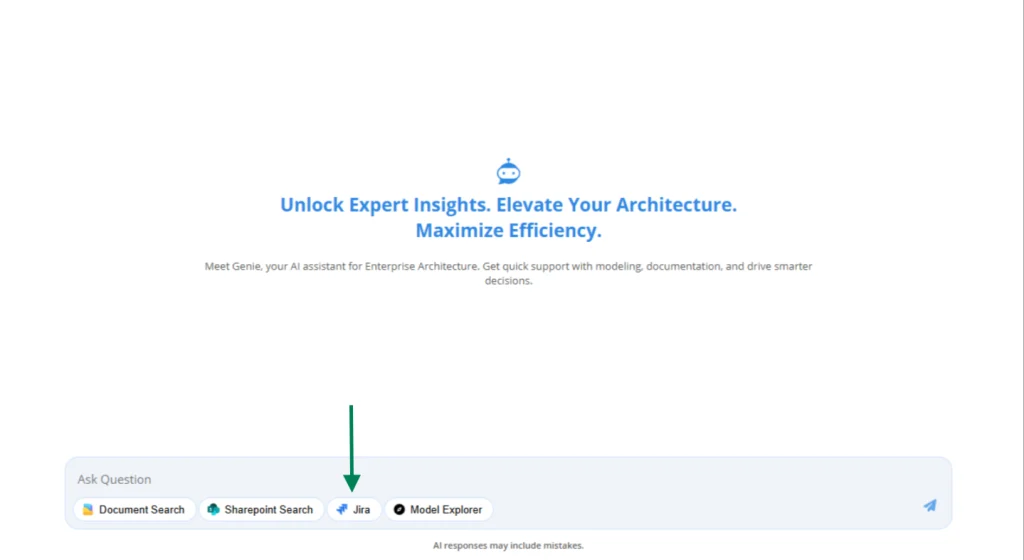
Note: If the number of Jira items exceeds 50, only the first 50 items will be included in the chat response.