
How to Configure the Reasoning LLM in Genie
Introduction
The Reasoning LLM in Genie is the core model that understands user queries, analyzes context, and generates meaningful responses. It goes beyond simple text generation by interpreting relationships and logic within your enterprise data.
Configuring a Reasoning LLM is mandatory for Genie to function. Without it, Genie cannot process queries, perform reasoning, or generate responses from connected data sources.
Once configured, the Reasoning LLM enables Genie to:
- Interpret questions with better accuracy and context.
- Identify and fetch relevant data through connected agents.
- Perform logical reasoning to deliver consistent and meaningful results.
Supported LLM Providers
Genie currently supports the following Reasoning LLM providers:
Steps to Access Reasoning LLM Settings
- Open Configuration from the bottom left.
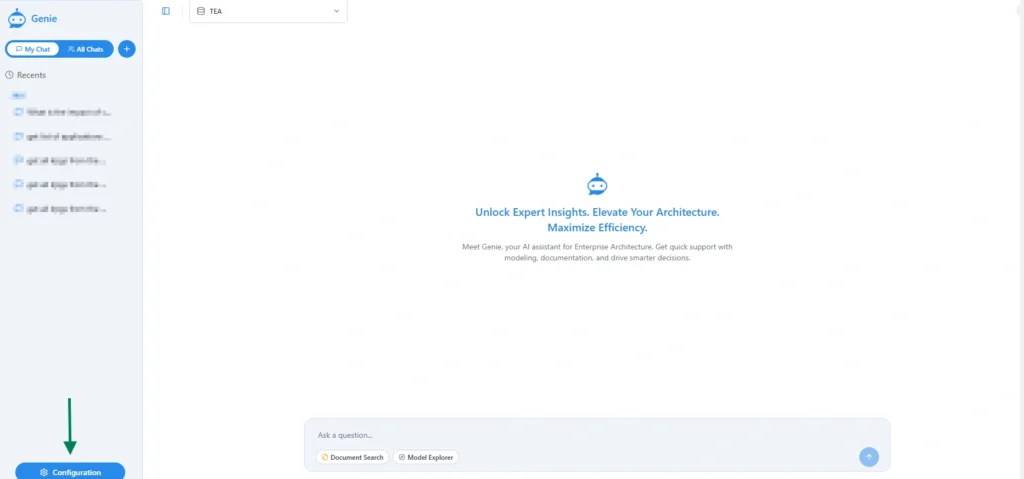
- From the setting page choose LLMs -> Reasoning LLM
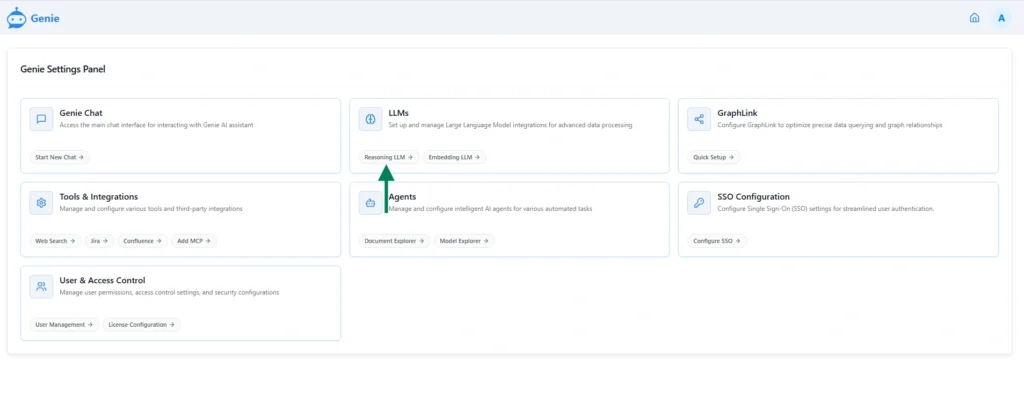
3. Locate the Select your LLM Provider dropdown
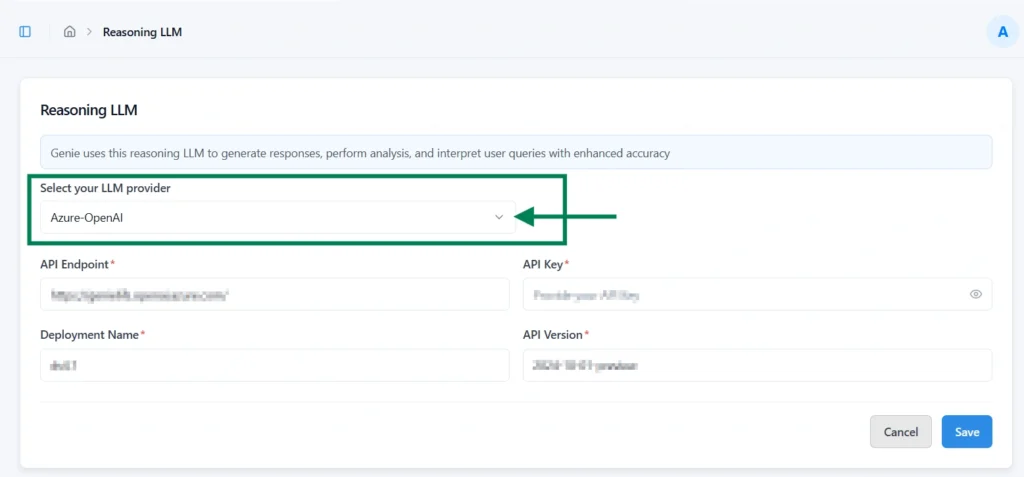
- The default provider is Azure – Open AI.
- Selecting a different provider automatically updates the page to show the relevant configuration fields required for that provider.
Configuring Reasoning LLM Providers
Azure – Open AI
Required Fields
| Name | Description |
|---|---|
| API Endpoint* | The endpoint URL where requests are sent to your Azure OpenAI service. |
| API Key* | The authentication key used to securely connect with your Azure OpenAI resource. |
| Deployment Name* | The name of the deployed Azure OpenAI model configured in your Azure portal. |
| API Version* | The version of the Azure OpenAI API to be used for communication. |
Steps
- Enter all required details for the selected LLM provider.
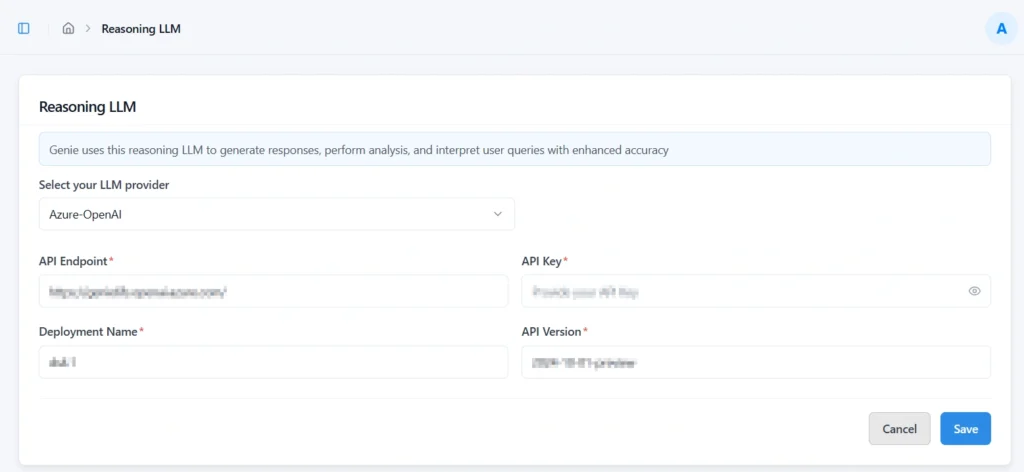
- Click “Save” to validate and store the configuration securely.
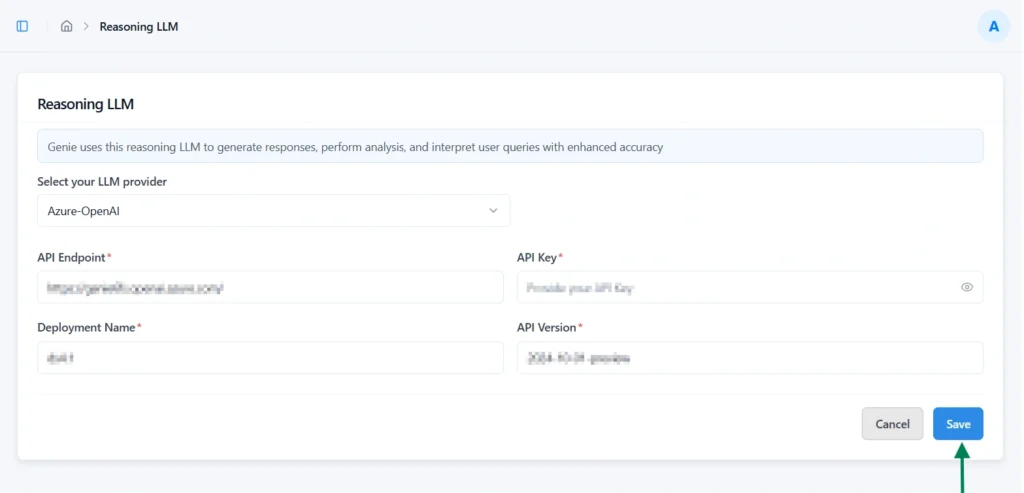
Note: For security purposes, the API Key will be hidden after validation and saving, ensuring it is not visible or accessible from the interface
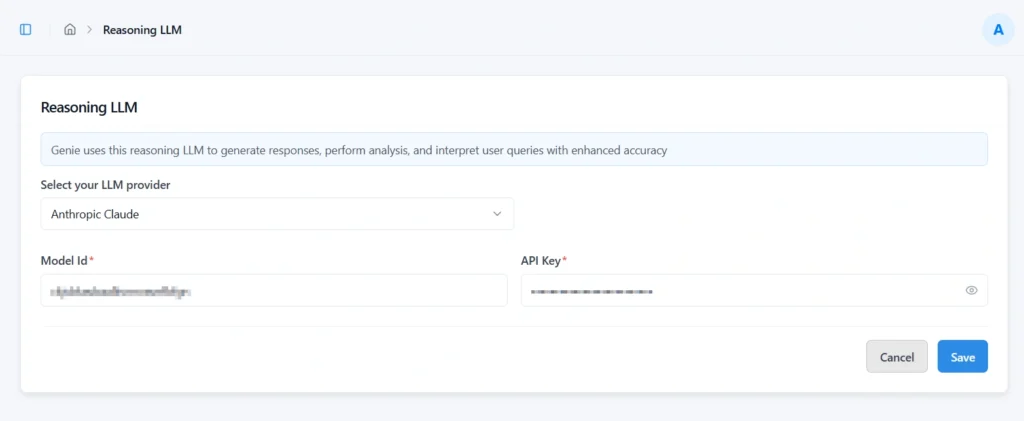
Anthropic – Claude
Required Fields
| Name | Description |
|---|---|
| Model Id* | The identifier of the Claude model to be used for reasoning requests. |
| API Key* | The authentication key is required to securely connect with the Anthropic API. |
Steps
- Enter all required details for the selected LLM provider
- Click “Save” to validate and store the configuration securely.
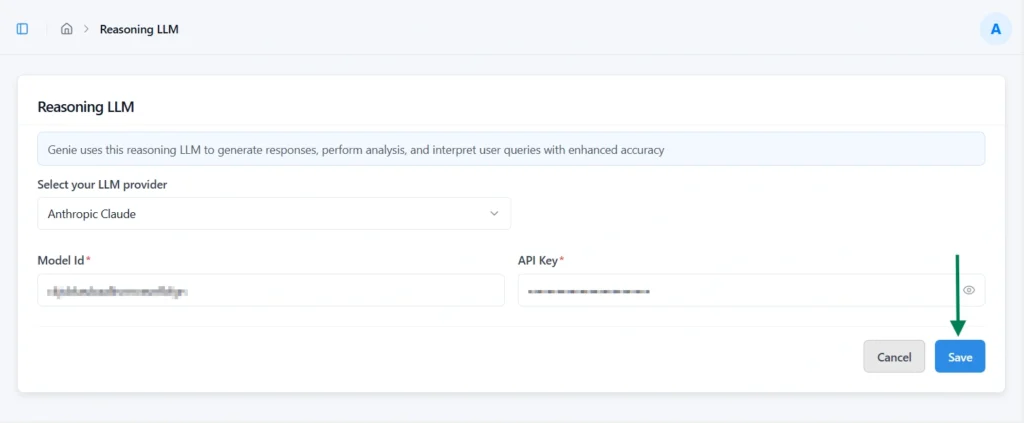
Note: For security purposes, the API Key will be hidden after validation and saving, ensuring it is not visible or accessible from the interface.
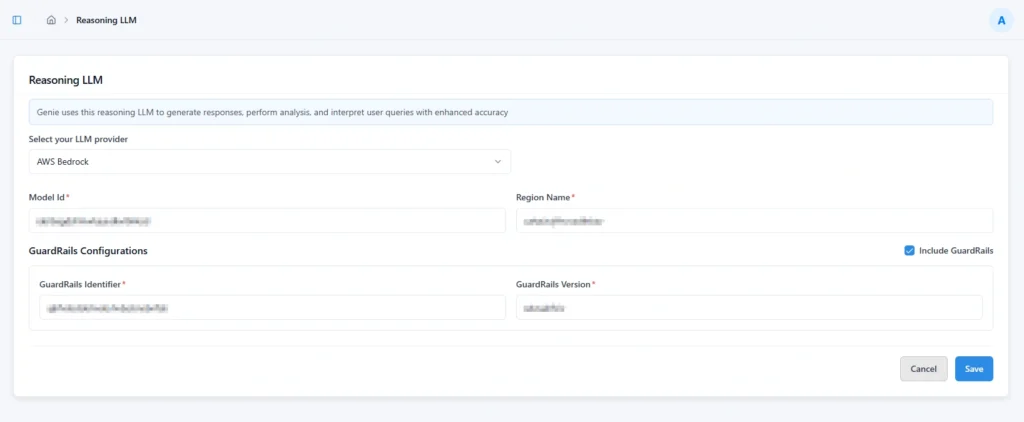
AWS Bedrock
Required Fields
| Name | Description |
|---|---|
| Model Id* | The identifier of the Claude model deployed in AWS Bedrock to be used for reasoning. |
| Region Name* | The AWS region where the Bedrock model is hosted and accessed. |
Steps
- Enter all required details for the selected LLM provider.
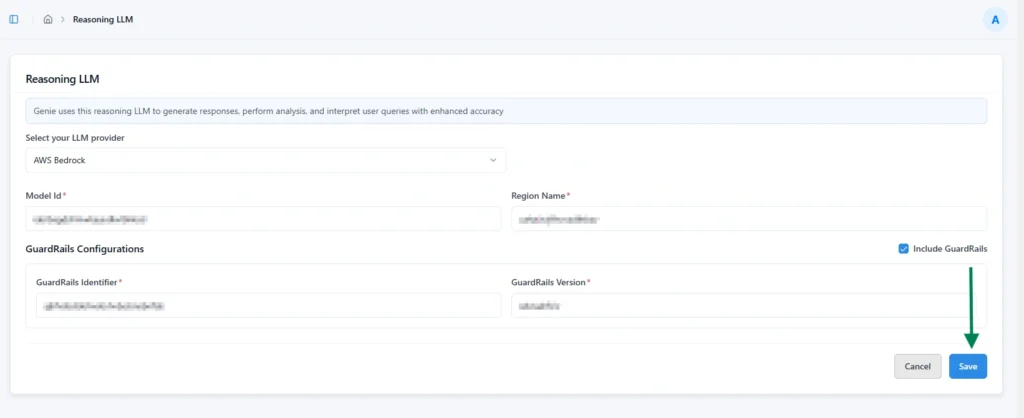
- Click “Save” to validate and store the configuration securely.
Guardrails Configuration
If a custom Guardrails Configuration is available in AWS Bedrock, you can enable it for enhanced model safety and controlled behavior.
Use Include Guard Rails option for enhanced model safety and behavior control.
Steps to Enable Guardrails:
- Select the Include Guardrails option.
- Once enabled, the following fields become editable:
| Name | Description |
|---|---|
| Guardrails Identifier* | The unique ID of the configured Guardrails policy in AWS Bedrock. |
| Guardrails Version* | The version number of the Guardrails configuration to be applied. |
- Enter the required details and save the configuration.
This ensures that the Reasoning LLM operates within your predefined safety and compliance guidelines.
OpenAI
OpenAI Required Fields
| Name | Description |
|---|---|
| Model Id* | The identifier of the OpenAI model to be used for reasoning and responses. |
| API Key* | The authentication key used to securely connect with the OpenAI API. |
OpenAI configuration Steps
- Enter all required details for the selected LLM provider
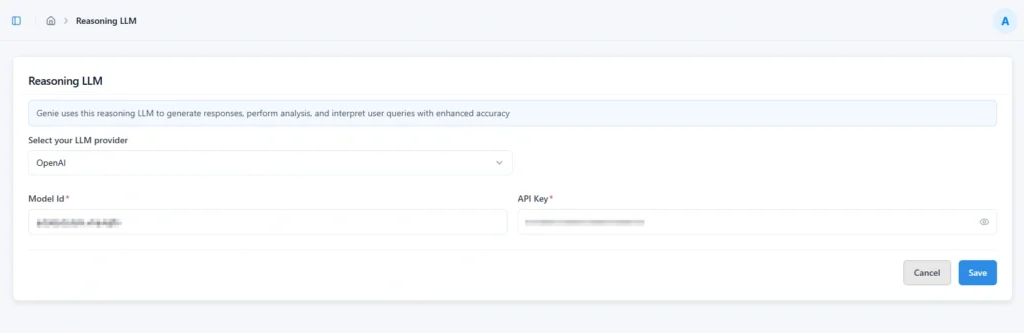
- Click “Save” to validate and store the configuration securely.
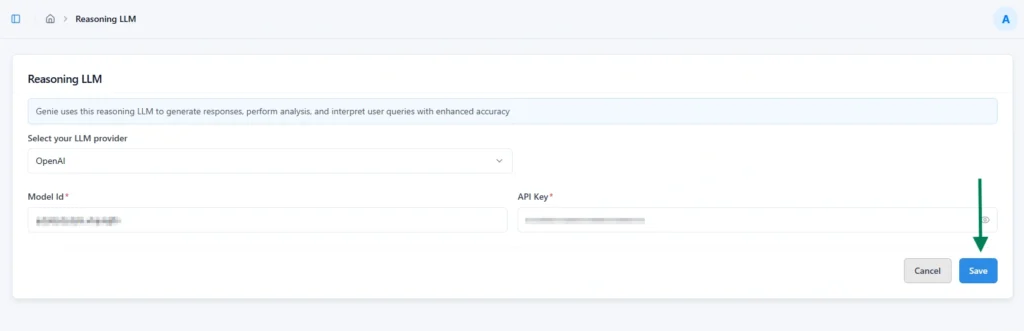
Note: For security purposes, the API Key will be hidden after validation and saving, ensuring it is not visible or accessible from the interface.
Groq
Required Fields:
| Name | Description |
|---|---|
| Model Id* | The identifier of the Groq model selected for reasoning and response generation. |
| API Key* | The authentication key used to securely connect with the Groq API service. |
Steps:
- Enter all required details for the selected LLM provider
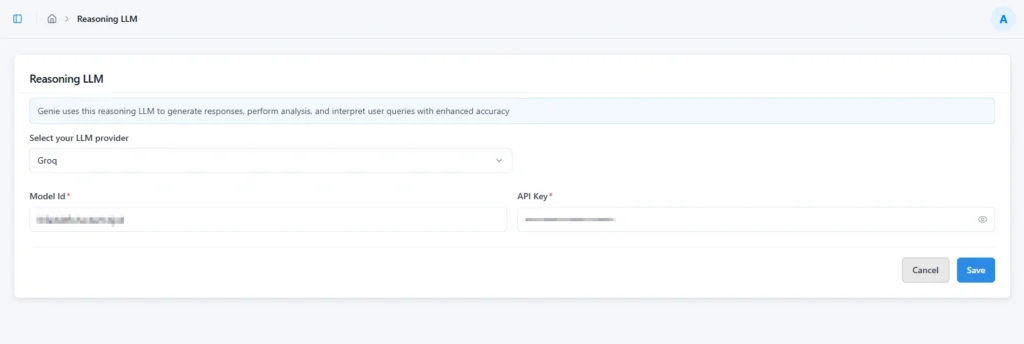
- Click “Save” to validate and store the configuration securely.
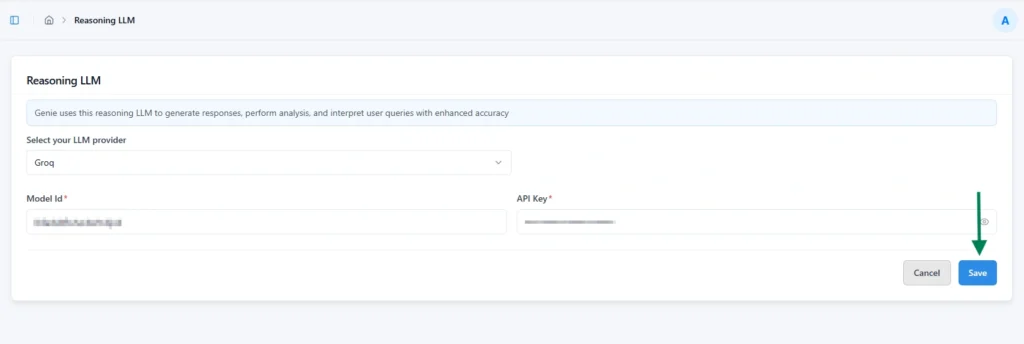
Note: For security purposes, the API Key will be hidden after validation and saving, ensuring it is not visible or accessible from the interface.
Subscribe to our Newsletter
Get product updates, feature tips, and integration insights in your inbox.