

How to Configure HTTPS in Genie
Overview
To enable HTTPS in Genie, you must extract the SSL certificate and private key from a .pfx file and configure Genie to use the generated cert.pem and key.pem files.
A PFX file contains:
- SSL certificate
- Private key
Genie requires the certificate and key as separate PEM files.
Prerequisites
- PFX (.pfx) certificate file
- Password for the PFX file
- OpenSSL installed on your computer
- Administrator access to Genie installation directory
Step 1 – Install OpenSSL
Download OpenSSL for Windows from the link
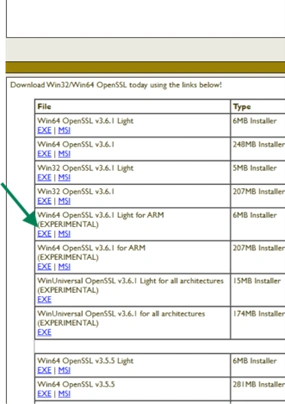
After installation:
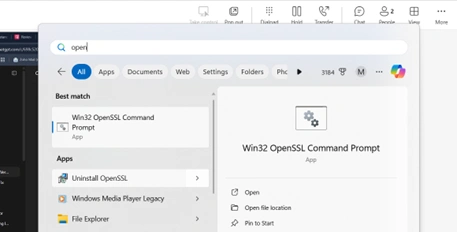
- Open Start Menu
- Search for Win64 OpenSSL Command Prompt or Win32 OpenSSL Command Prompt
- Launch it as Administrator
Step 2 – Extract the Private Key
Run the following command to extract the private key from your PFX file:
openssl pkcs12 -in “C:\Path\To\your-certificate.pfx” -nocerts -out ” C:\Path\To\key.pem ” -nodes
Enter the PFX password when prompted. (password won’t be visible)
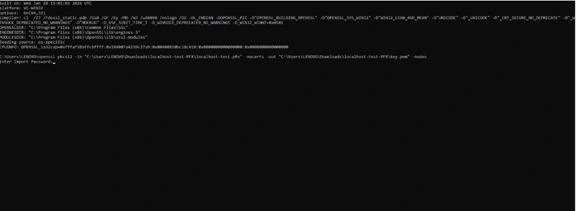
Output:
- key.pem file will be generated
- Keep this file secure
- Do not share this file
Step 3 – Extract the Certificate
Run the following command to extract the certificate:
openssl pkcs12 -in “C:\Path\To\your-certificate.pfx” -out “C:\Path\To\cert.pem” -nodes
- A file named cert.pem will be created
- This file contains your SSL certificate
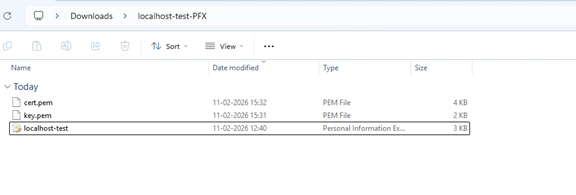
Files Created
- key.pem – Private Key
- cert.pem – SSL Certificate
Step 4 – Configure HTTPS in Genie
- Stop the Genie service using service.exe.
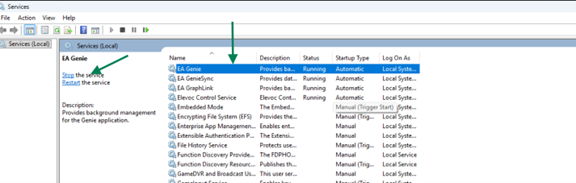
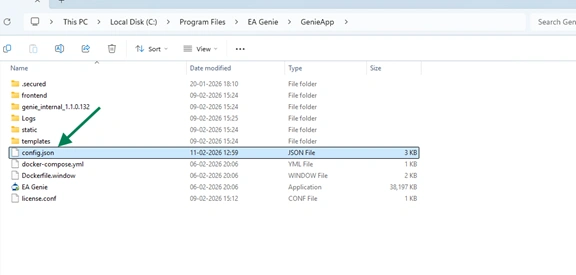
- Navigate to the installation directory:
eg: C:\Program Files\Genie\GenieApp
- Open the “config.json” file using Notepad or any text editor with administrator privileges.
4. Update the http_server section as follows:
“http_server”: {
“usehttps”: true,
“host”: “0.0.0.0”,
“port”: “5002”,
“key_file”: “C:\\Users\\Administrator\\GenieKeys\\key.pem”,
“cert_file”: “C:\\Users\\Administrator\\GenieKeys\\cert.pem”
}
Important
- Use double backslashes in Windows paths
- Ensure file paths are correct
- Save the file after editing
Test HTTPS Configuration
- Run Genie.exe manually
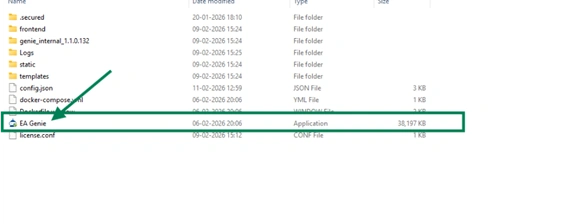
- Open browser and navigate to: https://localhost:5002
- Note that the HTTPS gets embedded in the site’s URL.
- Close the Genie.exe window.
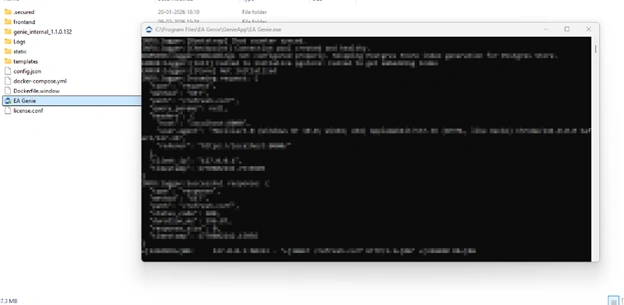
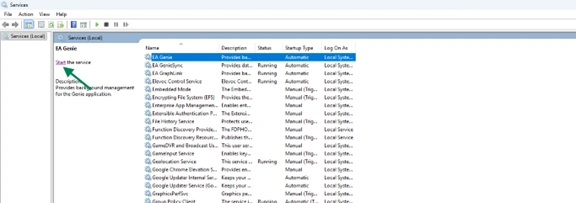
- Restart the service using service.exe
Common Troubleshooting
| Message | Reason |
|---|---|
| Incorrect PFX Password | Verify the correct password that is used. |
| File Not Found Error |
Confirm:
|
| Port Blocked | Check Windows Firewall or server security group settings. |
| Certificate Warning in Browser |
This usually occurs when:
|
Subscribe to our Newsletter
Get product updates, feature tips, and integration insights in your inbox.