

How to Set Up Genie Web Search for Fresh Data
Introduction
Genie supports real-time web searches, enabling it to retrieve the latest information from the internet. This feature enhances Genie’s responses by supplementing model-based insights with relevant and current external content from trusted web sources.
Supported Search Engines:
- Bing
- Tavily
Configuring Search Engine Access
To configure a web search engine in Genie:
1. Navigate to Configuration → Tools & Integrations → Web Search.
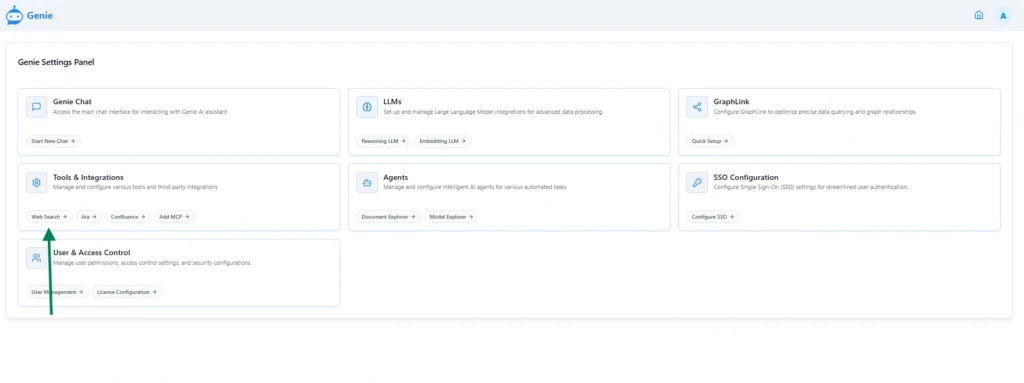
2. The page displays available options to set up the search engine and define related parameters such as API details and search preferences.
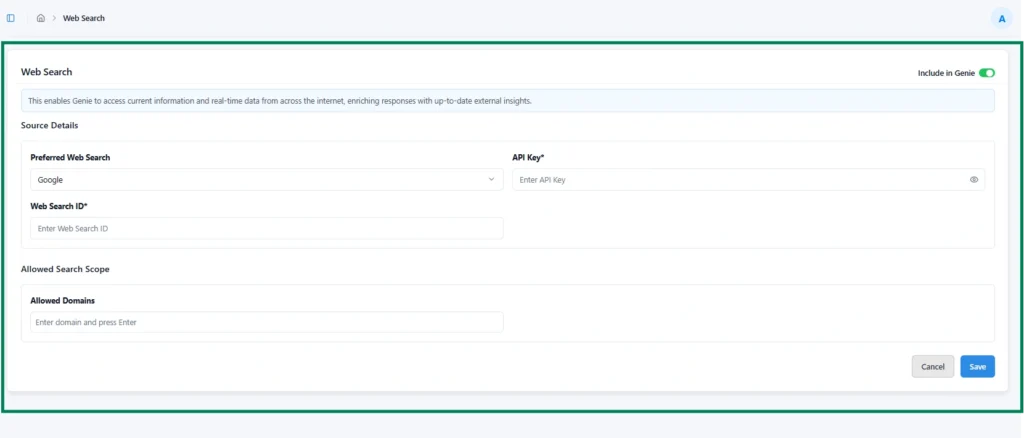
Preferred Search Engine
Select the search engine that Genie will use to perform real-time web searches. Choose from the supported providers based on your organization’s preference.
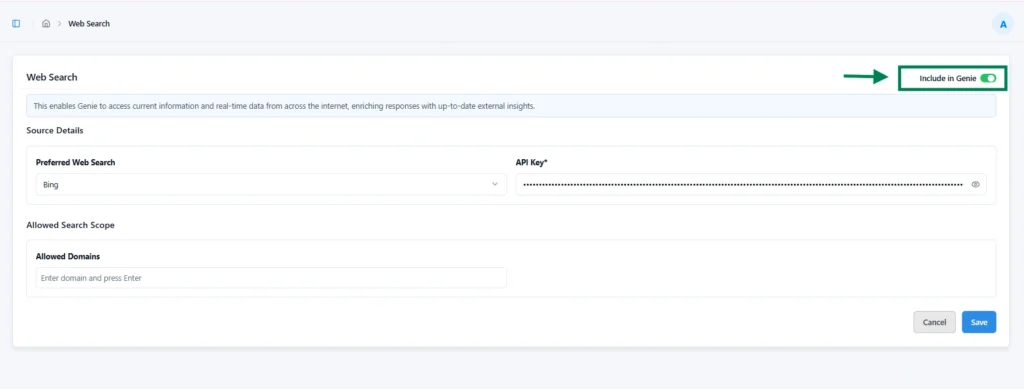
Include in Genie Chat
Enable this option to make the web search agent available within Genie Chat. Once enabled, the agent icon will appear in the chat interface, allowing Genie to perform real-time web searches as part of user conversations.
Configure Google
| Item | Description |
|---|---|
| API Key | Enter a valid API key for Google Custom Search. This key allows Genie to connect securely to the Google |
| Web Search ID | Provide the Custom Search Engine ID (CX) associated with your Google Custom Search setup. This ID defines the search context and determines which sites and sources Genie will query. |
Allowed Domains (optional)
- Specify one or more domains to restrict the scope of search results. When this field is left blank, Genie will perform unrestricted searches across all available web sources.
- If the Allowed Domains field is left empty, the search engine will operate as intended without any domain restrictions.
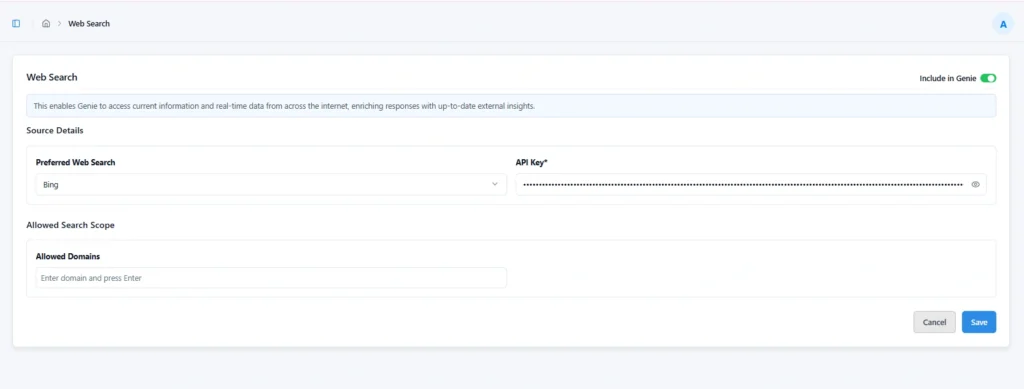
Configure Bing
| Item | Description |
|---|---|
| API Key | Enter a valid Bing Search API key for authentication. This key enables Genie to securely connect to the Bing Search service and retrieve web results. |
Allowed Domains (optional)
- Specify one or more domains to restrict the scope of search results. When this field is left blank, Genie will perform unrestricted searches across all available web sources.
- If the Allowed Domains field is left empty, the search engine will operate as intended without any domain restrictions.
Configure Tavily
| Item | Description |
|---|---|
| API Key | Provide a valid Tavily API key to enable web search functionality. This key allows Genie to connect securely to the Tavily Search API for retrieving relevant, up-to-date information. |
Allowed Domains (optional)
- Specify one or more domains to restrict the scope of search results. When this field is left blank, Genie will perform unrestricted searches across all available web sources.
- If the Allowed Domains field is left empty, the search engine will operate as intended without any domain restrictions.
Include in Genie Chat
Activate these options to make these agent icons available in Genie Chat.
Subscribe to our Newsletter
Get product updates, feature tips, and integration insights in your inbox.