
Kernaro Chat Overview
The Kernaro AI Chat Page serves as the primary interface for interaction with the Kernaro AI assistant. It is integrated with the EA GraphLink repository database from the Enterprise Architect (EA) Sparx application. The interface provides a conversational workspace that facilitates natural language interaction for querying, exploring, and configuring data models within EA.
1. Layout Overview
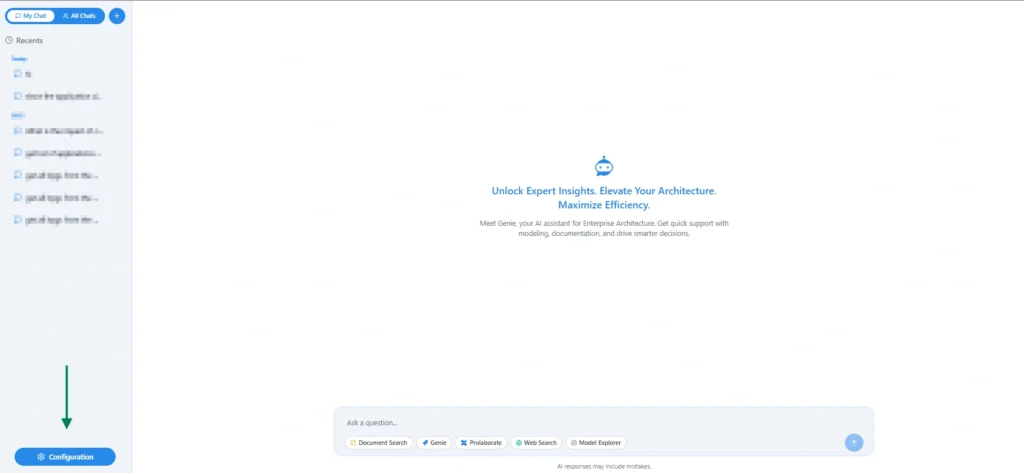
Left Panel – Chat History and Navigation
- Displays a chronological list of recent chat sessions, organized by time periods such as Today, Yesterday, Previous 7 days, and Previous 30 days.
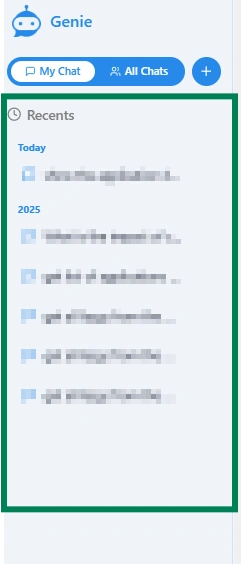
- Each entry corresponds to a previous query or interaction, enabling efficient access to past discussions.
- There are two options available for admin users to provide visibility into all chats created within the environment.
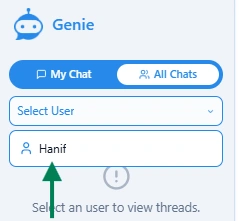
- The “My Chat” and “All Chats” tabs allow users to navigate between their own chat sessions and user-specific chat sessions.
- In the “All Chats” section, a Select User dropdown allows you to display a user’s chat history in the left pane by selecting them from the list.
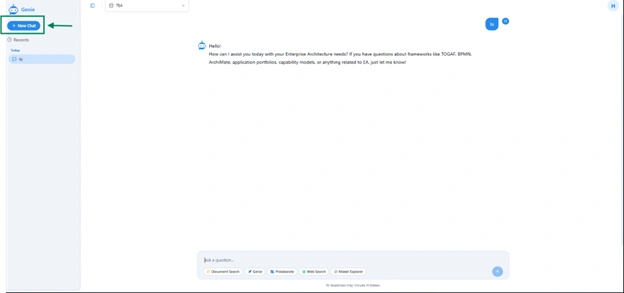
- Regular users have access only to the “New Thread” option on the top left.
Top Bar – Repository Selection
- The top dropdown menu displays the selected repository, representing the active EA GraphLink database connection.
- When multiple repositories are connected, the admin can designate a default repository based on requirements. The default repository can later be changed by a regular user according to individual preferences.
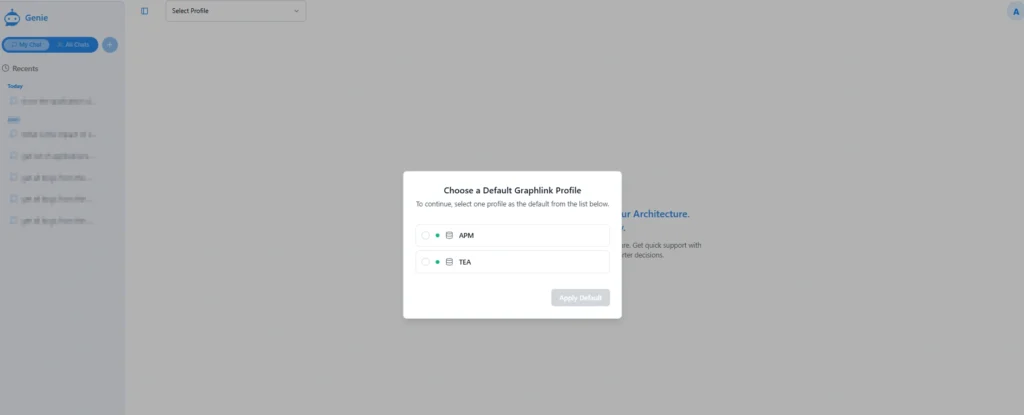
- Regular user(s) can switch the default repository from the drop-down menu .
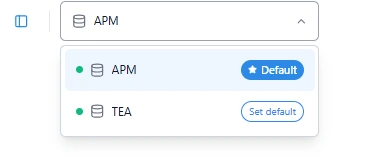
- The selected repository defines the operational context for Kernaro AI, determining the data source used for executing queries, generating diagrams, and retrieving model information.
Top Right – Profile and User Options
- A Profile icon is located in the top-right corner of the interface.
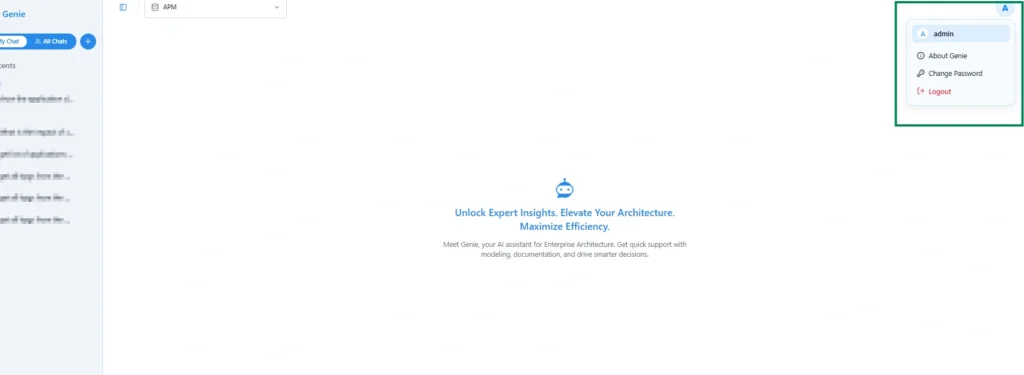
- Selecting the profile icon opens a dropdown menu that provides the following options:
- Change Password – Opens a dialog to update the user’s login credentials.
- About Kernaro AI – Displays version information and application details about Kernaro AI.
- Logout – Ends the current session and redirects to the login screen.
Bottom Section – Chat Input Field
- The chat input field is located at the bottom of the interface and is used for entering queries or commands.
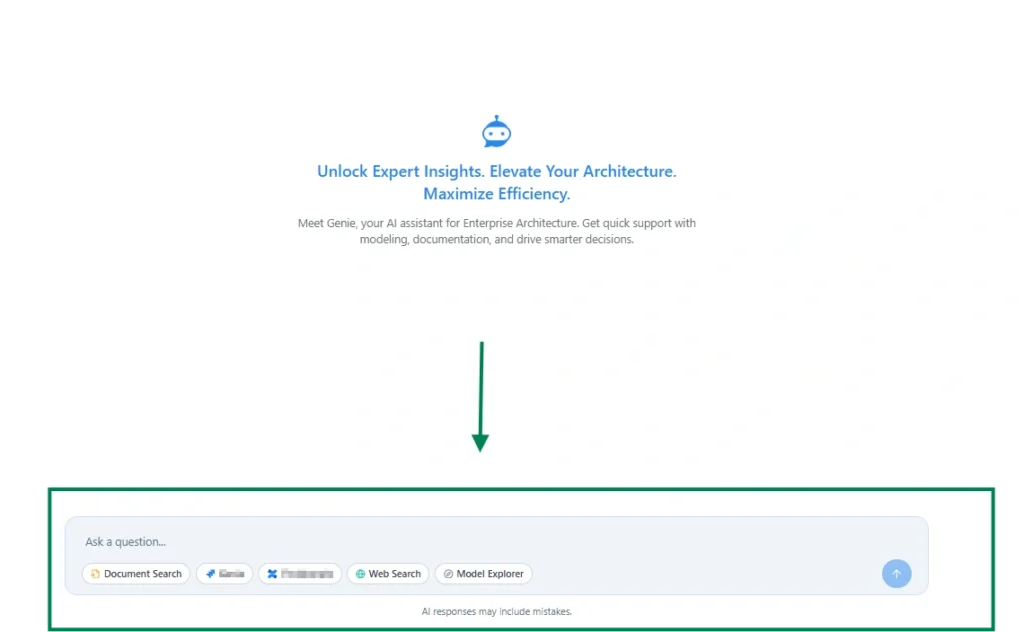
- The input section supports both free-text commands and contextual interactions for advanced model navigation and analysis.
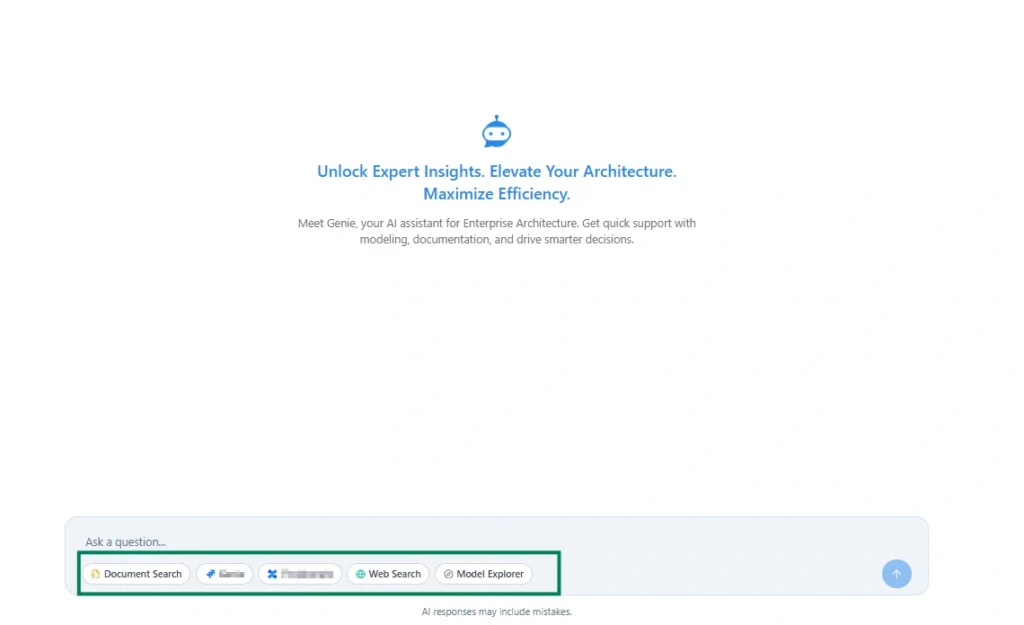
- An Agent bubble selector appears next to the input field, allowing users to choose between different assistant modes or specialized agents. In the image below, only two agents, Document Explorer and Model Explorer, are shown, while additional agents such as SharePoint Agent and Web Search Agent can also be added.
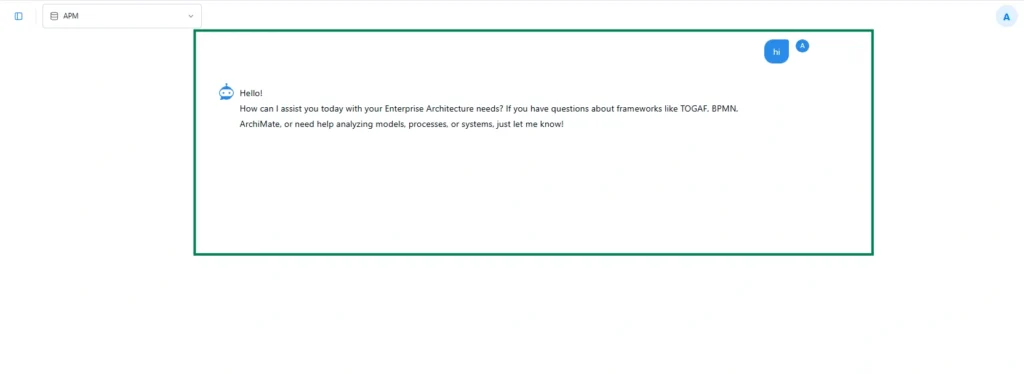
Once the prompt is given, the Responses, diagrams, and analytical outputs generated by Kernaro AI are displayed in this section for detailed review and interpretation.
2. Configuration and Settings
- The Configuration button, located in the lower-left corner of the interface (visible to admin users), provides access to the system’s core settings and customization options. Selecting this button opens the Settings Panel, a centralized location where administrators can configure operational parameters, manage integrations, and control user access within the Kernaro AI environment..
- The Settings Panel is organized into several configuration categories; each designed to streamline administration and ensure optimal performance:
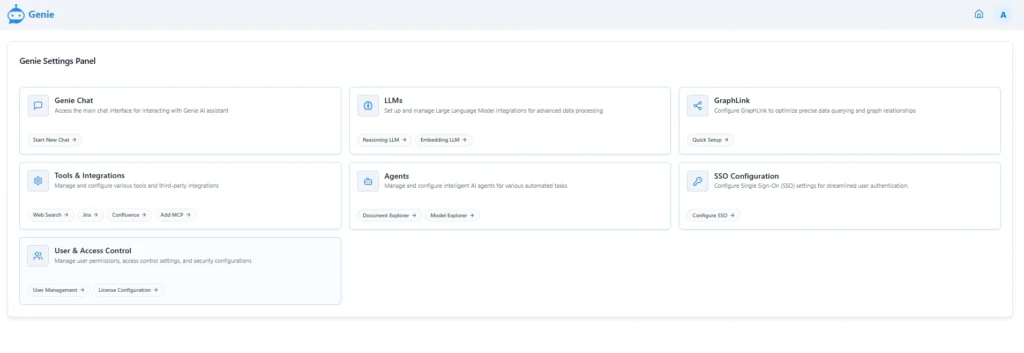
- Kernaro AI operational preferences, including Large Language Model (LLM) settings (learn more).
- Tools and integrations for linking external systems (learn more).
- User and Access Control settings for managing permissions and roles (learn more).
- Agent configurations, such as Document Explorer and Model Explorer (learn more).
- Repository connection management, identified as EA GraphLink (learn more).
Subscribe to our Newsletter
Get product updates, feature tips, and integration insights in your inbox.