
Configuring EA GraphLink in Kernaro
Overview
EA GraphLink serves as the connection layer between Kernaro AI and the Sparx Systems Enterprise Architect (EA) database. It enables Kernaro AI to interpret user prompts and retrieve model data accurately through a secure graph-based API.
Configuring EA GraphLink in Kernaro AI is a mandatory setup that allows all EA-related queries, such as fetching elements, relationships, or diagrams, to be routed through this layer for seamless integration and reliable data access.
When configured, Kernaro AI Chat can:
- Retrieve EA model information in real time
- Provide accurate and context-aware model details in responses
- Generate Prolaborate hyperlinks in chat responses for EA artifacts when the Prolaborate URL is configured
Prerequisites
Before starting the configuration, ensure the following details are available:
- API access credentials (API URL and Access Token) from an actively running EA GraphLink instance.
- Prolaborate Base URL and Repository ID if Prolaborate integration and hyperlink generation are required
- Please ensure that the Kernaro AI runs on either the domain or localhost. If it runs on the domain, it must be added to the “Allowed External Hosts” list in the Management Portal. This is not required if it is running on localhost.

Accessing EA GraphLink Configuration in Kernaro AI
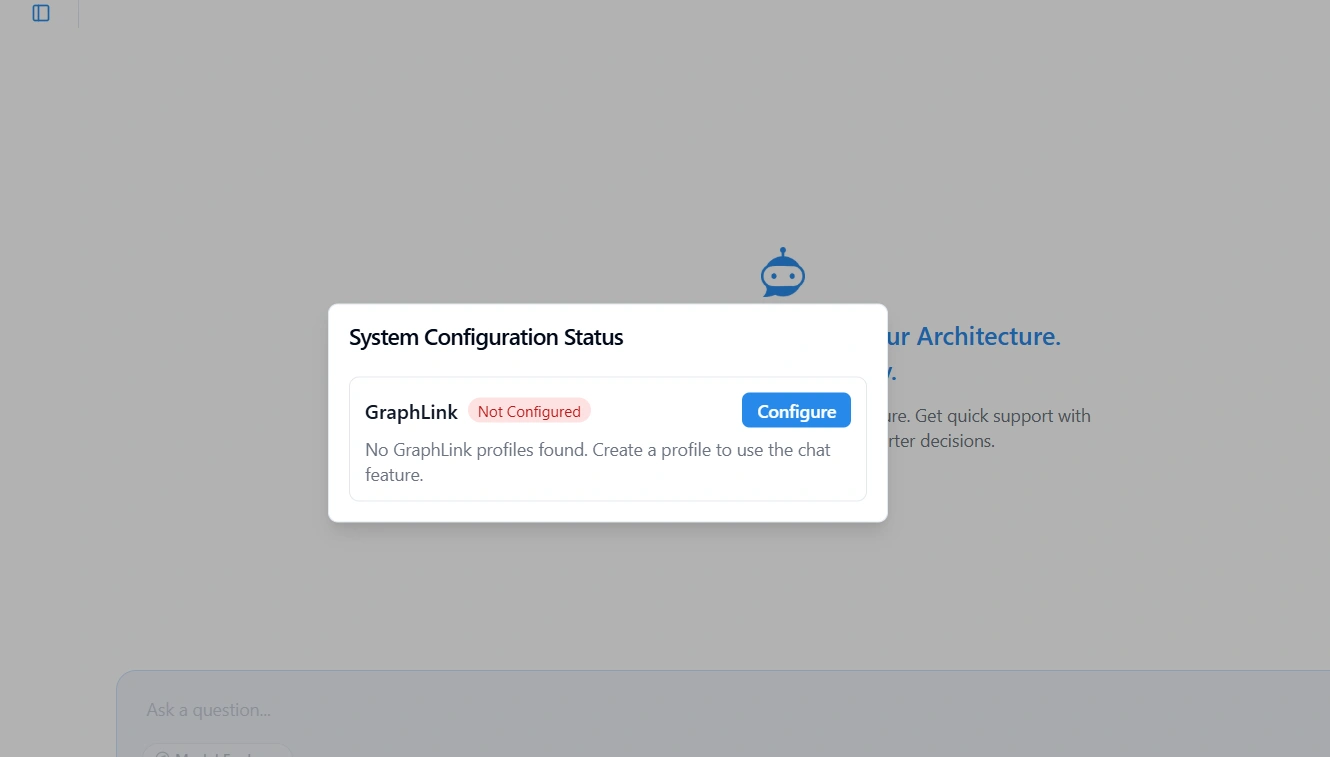
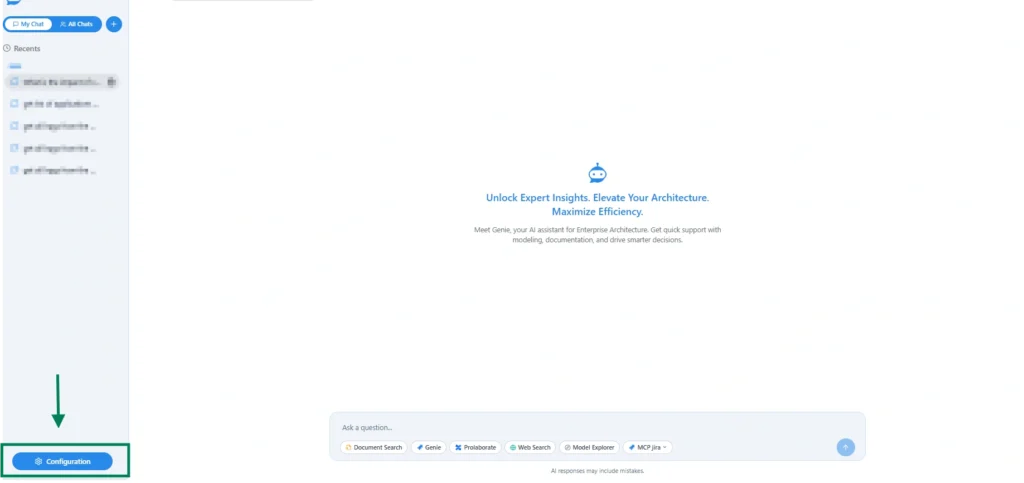
1. Log in to Kernaro AI using an Admin account. Initially, the admin can use the Configure button as shown in the image below.
2. To update or add a new GraphLink profile, navigate to Configuration → GraphLink.
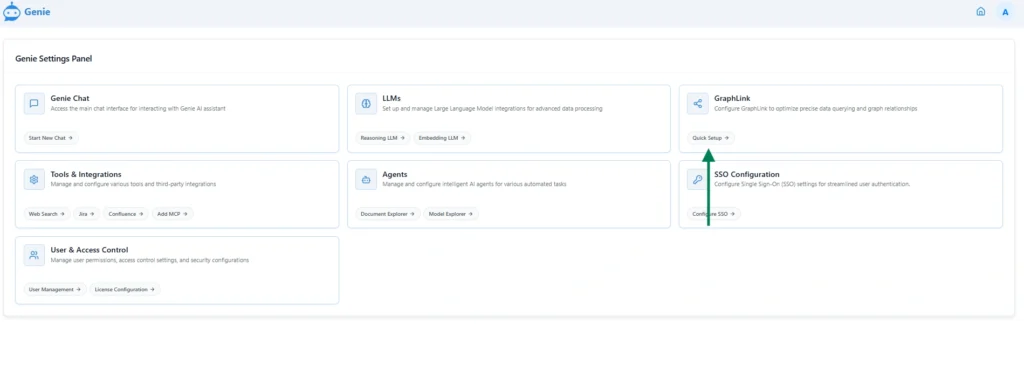
3. Click “Add GraphLink” to create a new profile.

- To modify an existing GraphLink profile, click the Edit icon next to the desired entry.
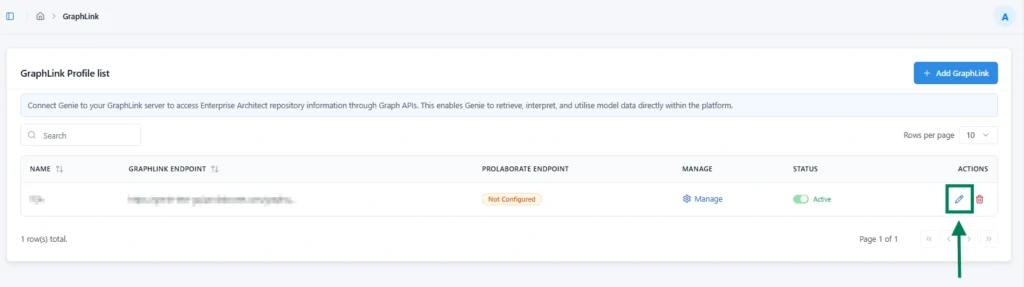
Adding an EA GraphLink Profile
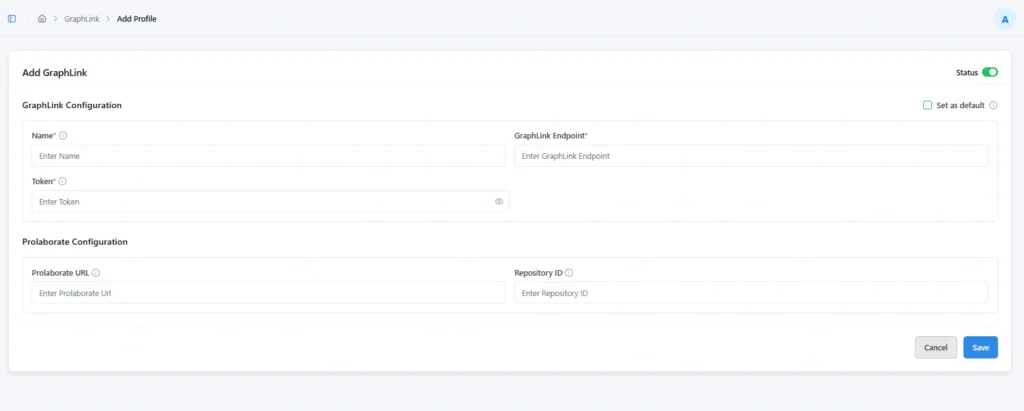
| Field | Description |
|---|---|
| Name | A user-defined name to identify the EA GraphLink profile within Kernaro AI. |
| GraphLink Endpoint | The API URL where Kernaro AI sends queries to the EA GraphLink service. |
| Token | A secure access token used to authenticate and authorize requests. |
| Set as default | Enable this option to make the profile the default connection for all users. |
Tip: Copy the Endpoint URL and Access Token directly from your EA GraphLink instance to ensure accuracy and avoid configuration errors.
Optional: Configuring Prolaborate
To enable Kernaro AI to include Prolaborate hyperlinks in chat responses, configure the following:
| Field | Description |
|---|---|
| Prolaborate URL | The base URL of your Prolaborate instance. |
| Repository ID | A unique ID identifying the EA repository within Prolaborate |
Note: This step is optional but recommended, as it enhances context and improves overall usability within Kernaro AI responses.
Verifying the Configuration
- Click “Save” after entering all required details.
- Once the profile is successfully added, the Kernaro AI Chat page will open without the configuration pop-up that appeared earlier.
- If Prolaborate is configured, verify that hyperlinks are generated correctly for a sample artifact.
Configuring Training Data for an EA GraphLink Profile
Overview
Training data helps Kernaro AI better understand the context and structure of your EA models by providing domain-specific examples, patterns, and keywords. When you add training data to an EA GraphLink profile, Kernaro AI learns how to interpret queries more accurately and deliver context-aware responses aligned with your enterprise model.
This feature allows administrators to define and manage curated datasets that improve the precision and relevance of Kernaro AI’s answers for that specific EA GraphLink profile.
Accessing Training Data Configuration
Training data can be added in two ways within Kernaro AI:
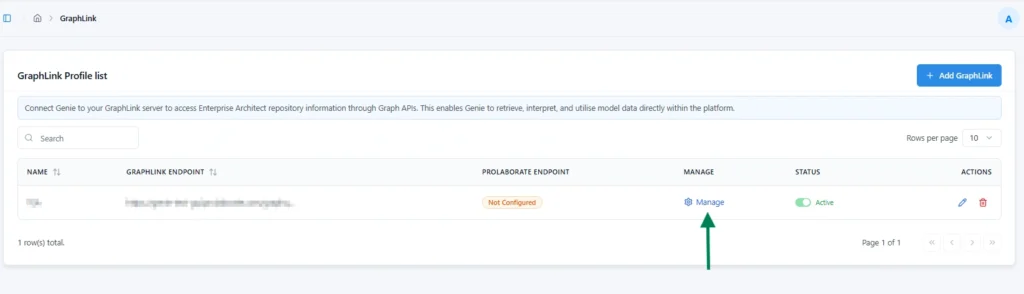
Approach 1: Ea Graphlink Manage Icon
GraphLink → Manage (GraphLink Profile List)
- Click the Manage icon for the desired GraphLink profile to open the Model Explorer settings, where training data can be configured.
Approach 2: From Model Explorer
- From the bottom-left corner of the Kernaro AI chat page, select Configuration.
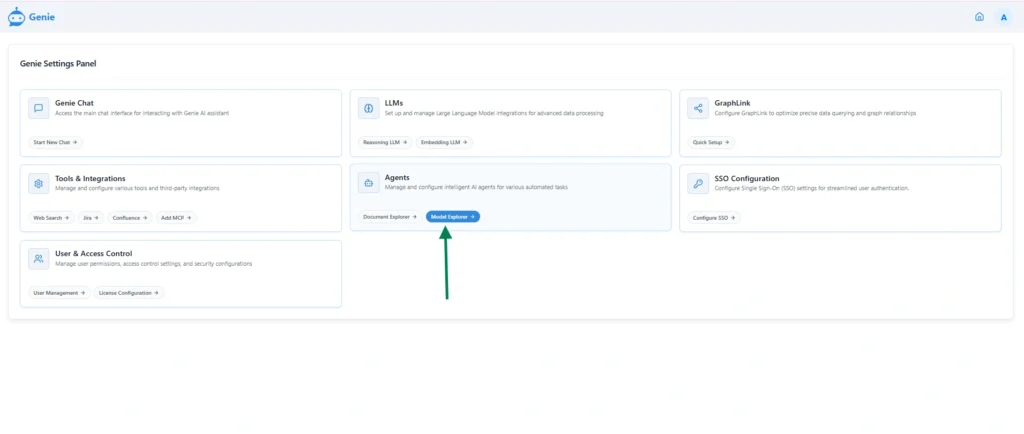
- Under the Agents section, select Model Explorer.
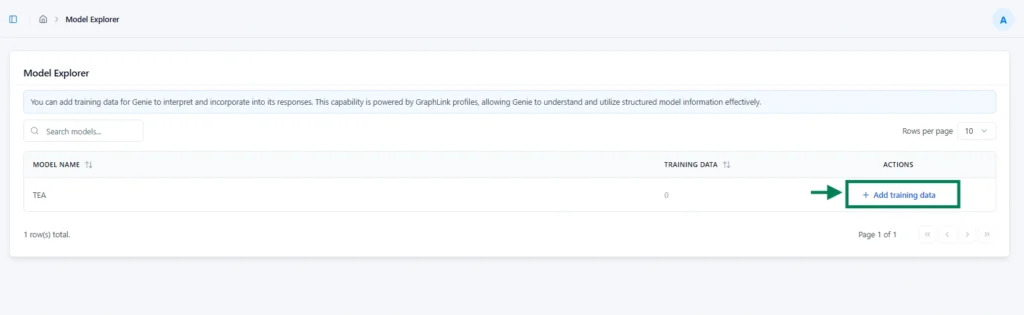
- On the Model Explorer page, click Add Training Data.
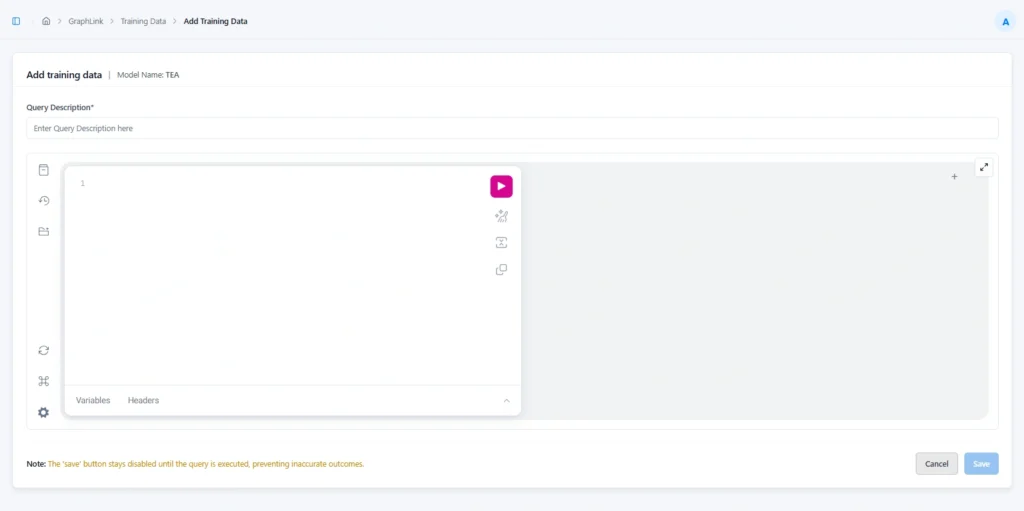
Query Explorer
Query Explorer provides a user-friendly interface to interact with the Enterprise Architect Repository. It enables the creation of custom queries to retrieve and analyze data.
- Once you click Add Training Data, the following screen will appear.
Key Functionality
- Retrieves sparx EA model details linked to conversation results
Usage Flow
- Add the required query through EA GraphLink
- Open the Kernaro AI chat page
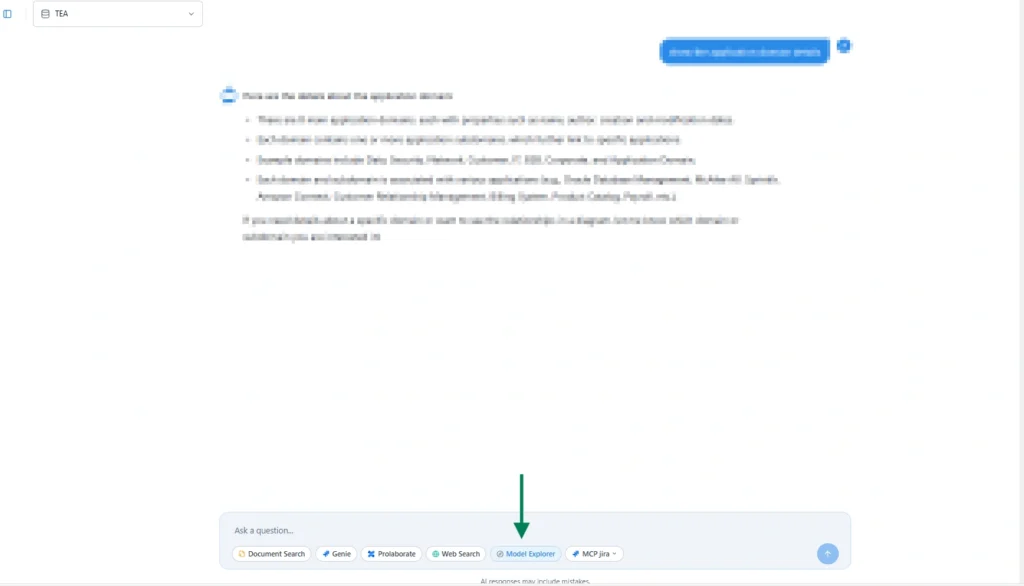
- Locate and select Model Explorer agent icon to view associated data

- When the Model Explorer agent icon is selected, the Kernaro AI chat responses are generated using only the tools available within the selected model, as intended.
Subscribe to our Newsletter
Get product updates, feature tips, and integration insights in your inbox.