


EA GraphLink simplifies the process of generating precise reports. This whitepaper highlights a common Application Portfolio Management (APM) use case: identifying applications scheduled to “GoLive” within a specific timeframe, such as three months or one year.
EA GraphLink is seamlessly integrated with our Applications Catalog Repository, enabling users to efficiently query and analyze application data.
Launch Query Explorer #
To begin, navigate to the Explorer section, as depicted in the image below, and follow the outlined steps to retrieve your desired insights.
For detailed guidance on using the Query Explorer, click here
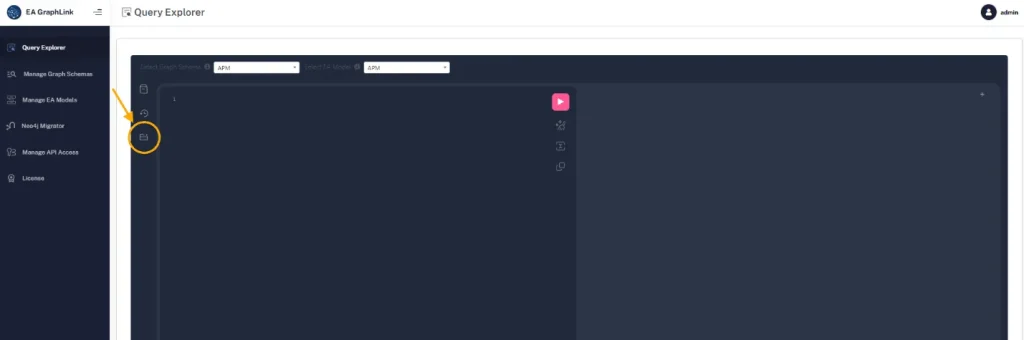
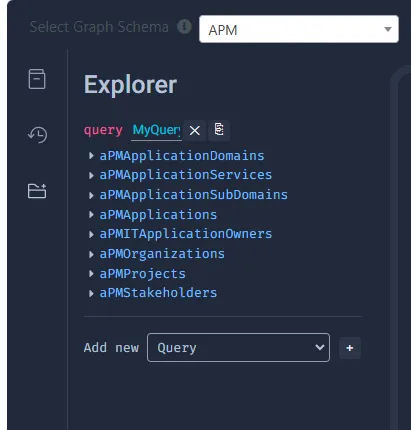
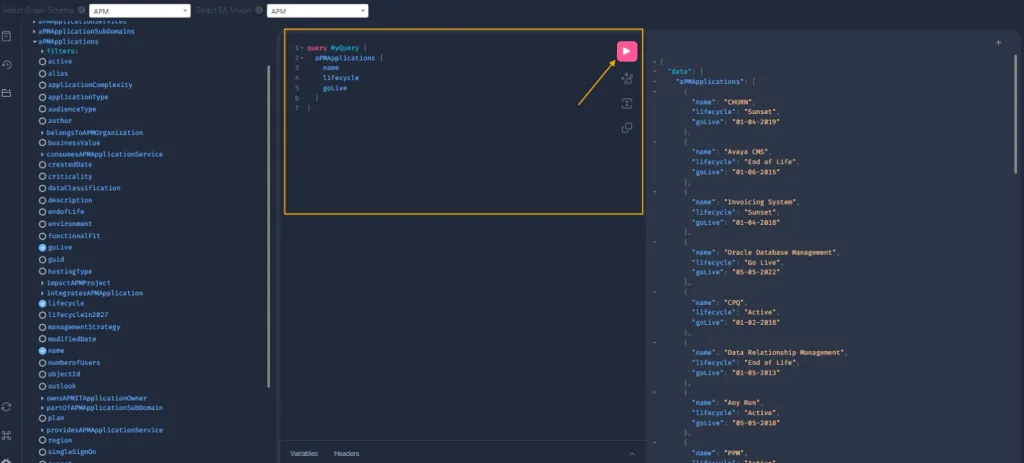
The Explorer page displays stereotypes and their associated properties from the selected schema (MDG). In this use case, the APM and its associated Schema (APM) has been selected, and its stereotypes are listed within an expandable accordion menu on the left. To proceed, expand the accordion for the “APMApplications” stereotype to view its properties.
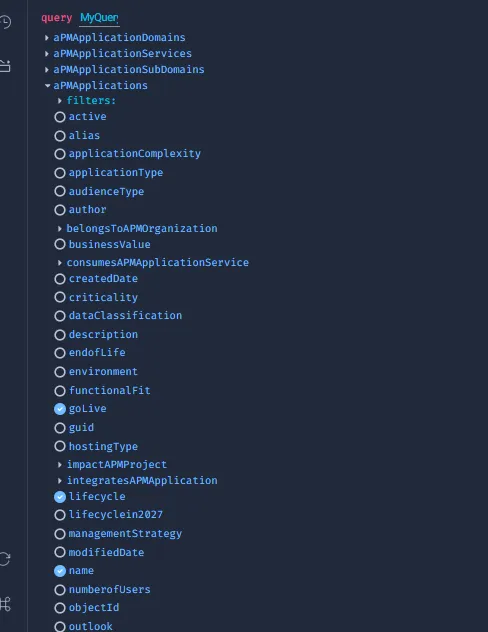
To retrieve applications with a lifecycle status of “GoLive,” select the following properties in sequence: Name, Lifecycle, and GoLive.
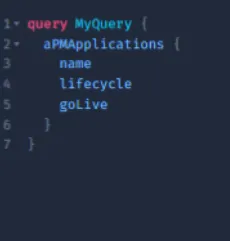
This selection automatically generates a query in the editor, as illustrated in the image below.
Executing the Query #
Execute the query by clicking the Execute button in the top-right corner. The results are fetched directly from the connected Enterprise Architect model. In this example, all applications within the APM model are displayed, including their lifecycle status and “GoLive” date.
Adding filters such as status of Lifecycle and Dates #
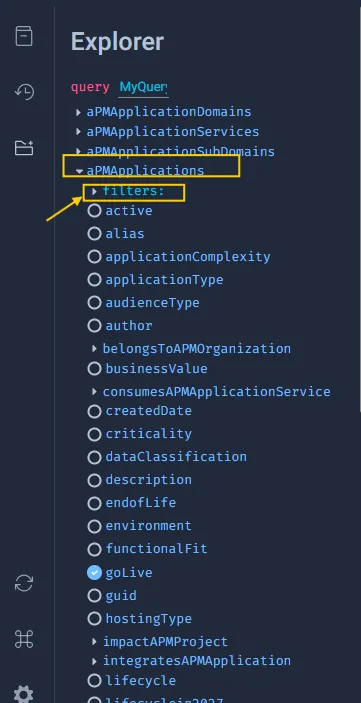
To refine the results further, we need to apply filters based as per use case. The Filters feature in EA GraphLink provides a easiest way to refine query results by applying specific conditions to the dataset. Selecting this option reveals a detailed list of filters associated with the chosen stereotype, as depicted in the accompanying image.
Condition 1:
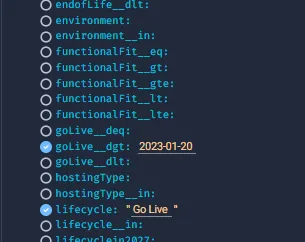
In our use case, we focused on identifying applications with the lifecycle status “Go Live”, to do, Select the lifecycle filter from the list and input the value “Go Live” (enclosed in quotes).
Condition 2:
The ‘goLive’ property enables users to define a date range for filtering applications. It is essential only to use the supported date format, YYYY-MM-DD. Ensure the date format is specified accurately to avoid errors in query execution.
For example, to filter applications with a lifecycle status of “Go Live” starting from a specific date, apply the goLive__dgt filter (greater than).
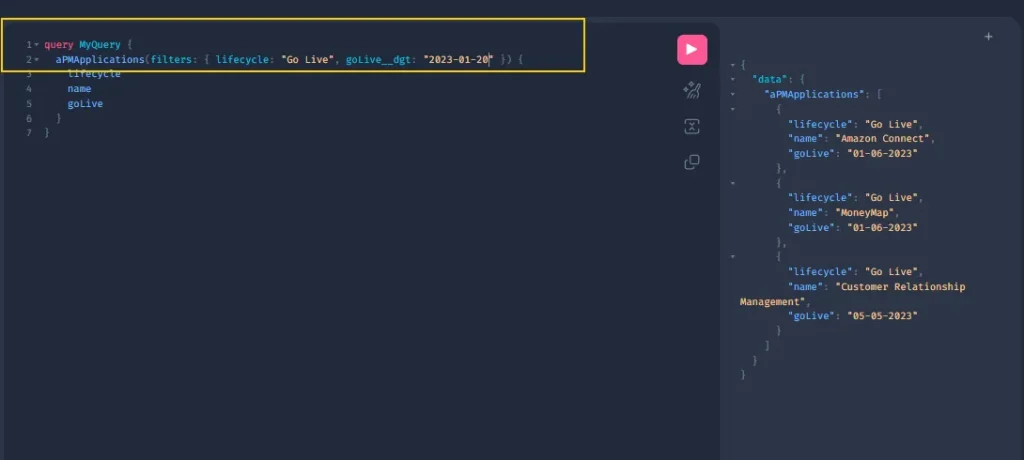
Once the filters and parameters are configured, the updated query will appear in the Query Editor. Click the Execute button to run the query. The results will display applications that meet the specified criteria, ensuring targeted and accurate data extraction.
Subscribe to our Newsletter
Get product updates, feature tips, and integration insights in your inbox.